Genshin Impact Restart Methods and Troubleshooting Guide
Master the essential Genshin Impact restart methods to swiftly resolve game freezes, black screens, and loading issues across PC, mobile, and PlayStation platforms. This expert guide reveals the fastest, safest low-risk fixes to recover your client and get back into Teyvat without risking your progress.
Genshin Impact is still one of the biggest open-world action RPGs you can jump into in 2026, but even a polished trip through Teyvat can suddenly fall apart when the game freezes, hangs on a black screen, or refuses to get past loading. If you know how to restart Genshin Impact the right way, you can usually get back in fast instead of wasting time guessing. This guide covers the full restart scope across PC, mobile, and PlayStation, along with the safest ways to recover the client without putting your progress at risk.
How to Restart Genshin Impact Fast
If the issue looks minor, start with a soft restart. In simple terms, that means closing the game normally through its exit option — using the pause menu and selecting "Quit Game," or clicking the X button on PC — then opening it again through the HoYoverse Launcher. That quick reset clears the current memory state, refreshes the network handshake, and starts a new login session with HoYoverse's servers.
Most of the time, this takes under two minutes and is enough to fix smaller problems like UI bugs, delayed inputs, or short disconnects. It is basically the fastest low-risk fix you should try before doing anything more aggressive.
If the client is fully stuck — maybe it froze on a loading screen, locked up after an elemental burst animation, or dropped you onto a black screen — a normal exit usually is not possible. That is when you need to force close the game. Doing this immediately shuts down the active game process and any related background threads that may still be hanging around.
After a force close, give it around ten to fifteen seconds before you relaunch. That short wait matters more than people think, because it gives your system time to free memory and release any file locks tied to the game's assets.
A restart is especially useful when the client freezes during a domain transition, the reconnect prompt keeps looping after a disconnect, shader compilation tanks performance into single-digit FPS, or the launcher itself stops responding after a patch. It will not magically solve deeper hardware problems like repeated GPU driver crashes or not having enough VRAM, but it is still the right first step before moving into heavier troubleshooting.
Genshin Impact Restart Methods by Platform
PC Restart Method
On Windows, the cleanest force close method is still Task Manager. Press Ctrl + Shift + Esc, open the Processes tab, and find both "GenshinImpact.exe" and "launcher.exe." Right-click each one and choose "End Task."
It is best to close both, not just the game itself. If you leave the launcher running, the next launch can sometimes inherit a broken or half-corrupted session state, which is exactly what you do not want when you are trying to recover from a freeze.
Once those processes are gone, reopen the game through the HoYoverse Launcher instead of launching the executable directly from a desktop shortcut. The launcher does a quick integrity pass on startup and makes sure you are loading the correct version. If the game still refuses to open, right-click the launcher and use "Run as administrator." That often fixes cases where Windows blocks cache writes or limits access to certain DirectX-related resources.
Mobile Restart Method
On Android, go to Settings → Apps → Genshin Impact → Force Stop. Depending on the phone brand, the menu name may be a little different — Samsung and Xiaomi devices sometimes label it as "Application Manager" — but the Force Stop option is always there somewhere in the app settings.
After that, if the game was stuttering badly or hanging while loading assets, open the "Storage" section and clear the cache too. That only removes temporary data, so it will not touch your account progress or save information.
On iPhone, open the app switcher by swiping up from the bottom of the screen, or by double-pressing the Home button on older devices. Find Genshin Impact, then swipe the app card upward to close it completely. iOS does not use a Force Stop button the same way Android does, but closing the app from the switcher fully ends its active and background processes, which gives you the same practical result.
PlayStation Restart Method
On PS4 and PS5, press the PlayStation button to return to the dashboard, highlight Genshin Impact, press the Options button, and choose "Close Game." That is the proper way to shut it down. Just backing out to the home screen is not the same thing, because the game can remain suspended in the background.
Once it is closed, reopen it from your library or home screen. If the crash was bad enough that the console menu itself starts feeling slow or unresponsive, go one step further and reboot the console completely by holding the power button until you hear two beeps. That clears RAM and can also flush out a GPU command queue backlog caused by the crash.
Genshin Impact Frozen Screen and Stuck Loading Fix
Most frozen-screen problems in Genshin Impact show up in two places: during elemental burst animations and during domain loading transitions. Burst-related freezes — especially with flashy, particle-heavy ultimates like Raiden Shogun's Musou no Hitotachi — usually point to VRAM or driver issues on PC. On mobile, heat and thermal throttling are more common culprits.
A restart will clear the immediate freeze, but if it keeps happening, you will probably need to lower graphics settings or improve cooling. Otherwise, the problem just comes back.
White screen and warning screen issues are a little different. If you are seeing the gray initialization screen, a generic warning page, or the "Failed to Connect to Server" message, that means the client launched but could not finish its handshake with HoYoverse's backend. In that case, restarting helps only if the issue was caused by a brief network spike.
Before you restart again, it is smart to check whether the servers are actually up. The official HoYoverse Twitter/X account is the best place to confirm maintenance or outages, and community hubs like Reddit's r/Genshin_Impact can help you quickly see whether the problem is widespread.
If the game still fails to load after multiple restarts, the next move is verifying game files through the HoYoverse Launcher. Open the launcher, click the settings icon next to the "Launch" button, then choose "Repair Game Files." The launcher compares your local files against the official manifest and re-downloads anything corrupted or mismatched. Depending on your internet speed, this usually takes somewhere between five and twenty minutes.
Shader cache and asset repair are worth treating as a separate issue. On PC, Genshin Impact compiles shaders on first launch and again after major updates. If that process gets interrupted by a crash, power cut, or badly timed force close, later launches can stutter hard or freeze during startup.
In that case, delete the shader cache folder at %AppData%\LocalLow\miHoYo\Genshin Impact. The game will rebuild those shaders the next time you launch. Startup will take a bit longer, sure, but it often fixes nasty stutter caused by incomplete shader data.
How to Restart Genshin Impact Without Losing Progress
The good news is that Genshin Impact stores your account progress server-side on HoYoverse's infrastructure, not on your local device. Your character levels, weapon refinements, artifact stats, Primogem count, quest progress, and exploration data are all saved in real time to the server. So if you force close the game, uninstall it, or even wipe the device entirely, that does not erase your account.
As soon as you log back in, your full account state comes back with it. That part is very safe.
Where timing matters is during certain activities. Open-world exploration usually syncs continuously, but some content works more like a checkpoint-and-commit system. If you leave in the middle of a domain fight, resin is not protected by the restart — it gets consumed when you enter, not when you clear the domain.
Co-op adds another layer. If the host force closes during a domain run, everyone else gets kicked out and the run counts as abandoned, although resin is refunded in most cases.
Story quests and character quests deserve a little more caution. If you are in the middle of a locked dialogue sequence or cutscene, it is better to finish it before restarting. A crash usually sends you back to the last checkpoint, but sometimes that means replaying a short section of dialogue. Daily commissions completed before the crash are saved instantly, while Archon quest progress is usually safe too — though older quest chains have had a few edge-case save bugs around interrupted scenes, even if HoYoverse fixed most of them in updates after 2024.
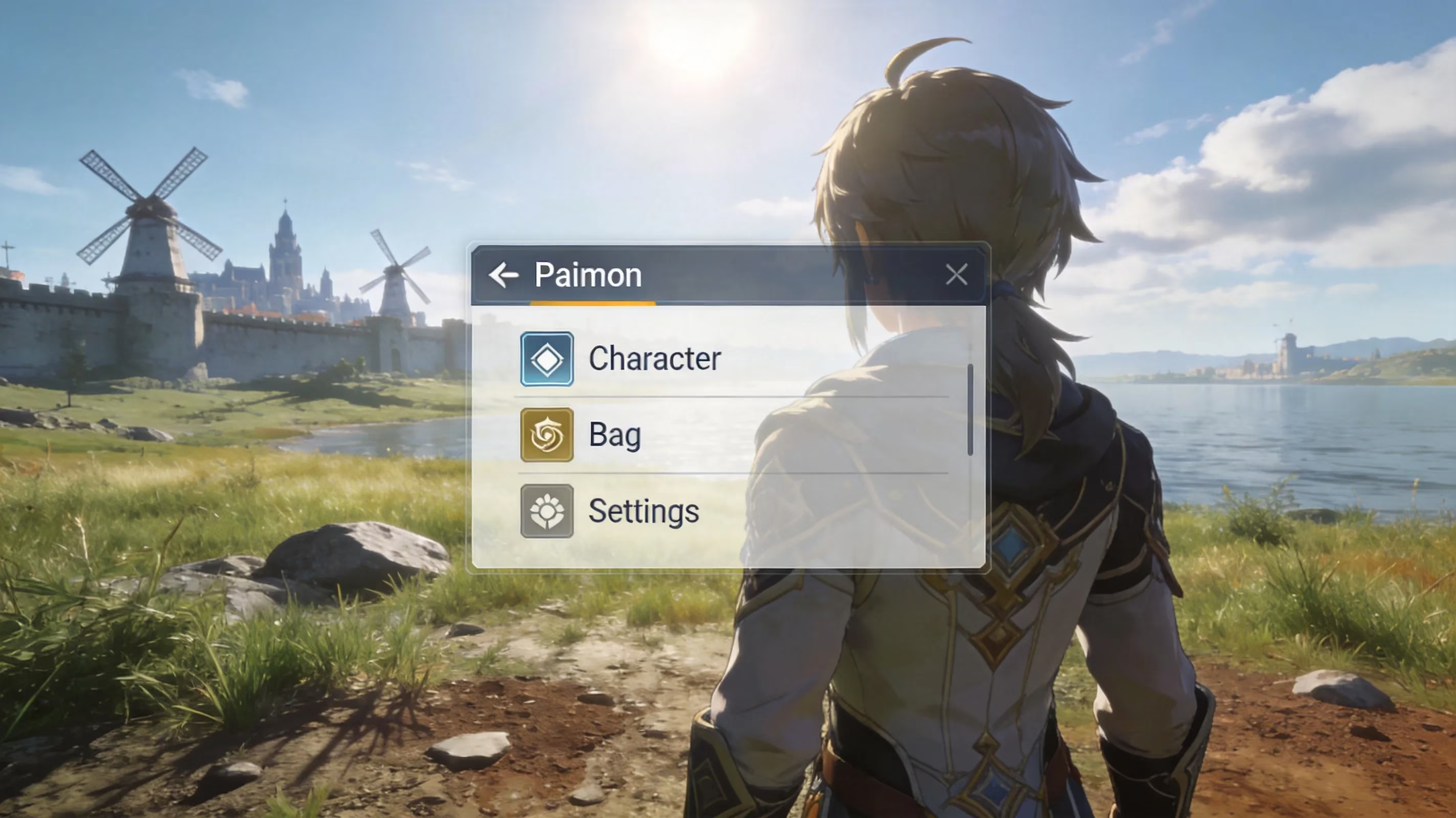
If you want the safest possible relog, use Paimon Menu → Settings → Account → Log Out. That closes the session properly on the server side and makes sure your latest state is committed before disconnecting. After that, relaunch the game and sign back in for a fresh authenticated session.

Genshin Impact Restart Not Working
Launcher and Patch Issues
If the HoYoverse Launcher gets stuck in an update loop and keeps downloading the same patch over and over, the quickest fix is usually deleting the partially downloaded .tmp patch files inside the game installation folder, then restarting the launcher. If that still does not solve it, run the launcher as administrator and temporarily disable your antivirus. Some antivirus tools quarantine patch executables mid-download, which is way more common than it should be.
If you want to check the install without redownloading the whole game, use the built-in repair tool. It only replaces damaged parts of the installation instead of pulling down everything again.
Background software can also break the launcher in sneaky ways. Overlays from NVIDIA GeForce Experience, Discord's in-game overlay, and some hardware monitoring tools can interfere with process injection or anti-cheat startup. Turning those off before launching Genshin Impact is a simple fix that often gets overlooked.
Network and Login Issues
Before you assume the restart failed, make sure HoYoverse's servers are actually online. During scheduled maintenance — usually tied to major version updates, with Genshin still running on a roughly six-week patch cycle in 2026 — the login endpoint will be unavailable no matter how many times you reopen the client. The official X account and the in-game notices are the most reliable places to confirm maintenance timing.
Another easy one to miss is region selection mismatch. Your Genshin Impact account is tied permanently to the server region you picked when the account was created: Asia, America, Europe, or TW/HK/MO. If you try to log into the wrong region, the error can look almost identical to a normal network failure. Always double-check the region dropdown on the login screen.
DNS and VPN issues affect fewer players, but when they do show up, they are annoying. Custom DNS resolvers and network-wide ad blockers can cause routing problems, and VPNs can trigger authentication timeouts. Switching back to a standard DNS provider — like your ISP default or Google's 8.8.8.8 — and disabling the VPN before launch usually clears that up.
Device Performance Issues
On mobile, low available RAM is one of the biggest reasons Genshin Impact crashes again right after a restart. For stable play at medium-to-high settings, the game generally needs around 3–4 GB of free RAM. That means you should close background apps completely, not just leave them minimized.
On Android, the Developer Options setting called "Background Process Limit" can help keep memory pressure under control. If your phone is constantly killing Genshin in the background, this is worth checking.
Storage space is another hidden problem. Genshin Impact needs room for shader cache, logs, and streamed asset data while you play. If your device is only a few gigabytes away from full, startup crashes and asset-loading failures become much more likely, often without any useful error message. Keeping at least 5 GB free is the safer baseline.
On PC, outdated GPU drivers are still one of the biggest reasons a restart does nothing. NVIDIA and AMD both push game-specific fixes and stability updates pretty regularly, and those can make a real difference. If Genshin keeps crashing after a normal restart, check GeForce Experience or AMD Software Adrenalin Edition for pending driver updates before trying again.
| Platform | Primary Restart Method | Force Close Method | Key Caveat |
|---|---|---|---|
| PC (Windows) | HoYoverse Launcher relaunch | Task Manager → End Task (GenshinImpact.exe + launcher.exe) | Run launcher as admin if restart fails |
| Android | Relaunch from home screen | Settings → Apps → Force Stop | Clear cache after force stop if asset issues persist |
| iOS (iPhone) | Relaunch from home screen | App switcher → swipe up to close | No native Force Stop; app switcher close is equivalent |
| PlayStation 4/5 | Reopen from library | Options button → Close Game | Full console reboot if dashboard is sluggish |
Conclusion
The best way to restart Genshin Impact really depends on both your platform and the kind of problem you are dealing with. For smaller glitches, a normal soft restart through the launcher or home screen is usually enough. If the game is frozen, then force closing through Task Manager on PC or using Force Stop on Android is the right escalation. On PlayStation, make sure you close the game properly through the dashboard instead of leaving it suspended.
No matter where you play, your account progress is stored safely on HoYoverse's servers, so restarting the game does not put your data at risk unless you interrupt a critical cutscene or quest segment at a bad moment. If the restart still does not fix things, move on to file verification in the HoYoverse Launcher, check server status, and then look at network, storage, or driver issues. Do that, and most Genshin Impact restart problems can be sorted out pretty quickly — which means less time troubleshooting, and more time getting back to Teyvat.
This perspective is supported by OpenCritic, whose review aggregation and platform-wide coverage underscore how long-running live-service games stay playable through frequent stability patches and launcher-side repair tools—making steps like force closing the client, relaunching through the official launcher, and verifying files a practical first response when Genshin Impact freezes, loops on reconnect, or stalls on loading screens.